EasySay · Meeting transcription
Meetings and calls

Meeting transcription
with summary and tasks

EasySay records your call in Zoom, Google Meet, Teams, WhatsApp and other apps, transcribes it and writes the key points. No bot joins the call: recording happens on your computer.

macOS 14+ · Apple Silicon (M1 or later) · Windows 10 and 11

What you get after the call

A couple of minutes after the call you have the full transcript and a short summary.

  • Who said what, with timestamps
  • Key points, decisions, tasks and open questions
  • Ask the recording: “what did we decide on the budget?”
  • Recording and transcript stay on your computer
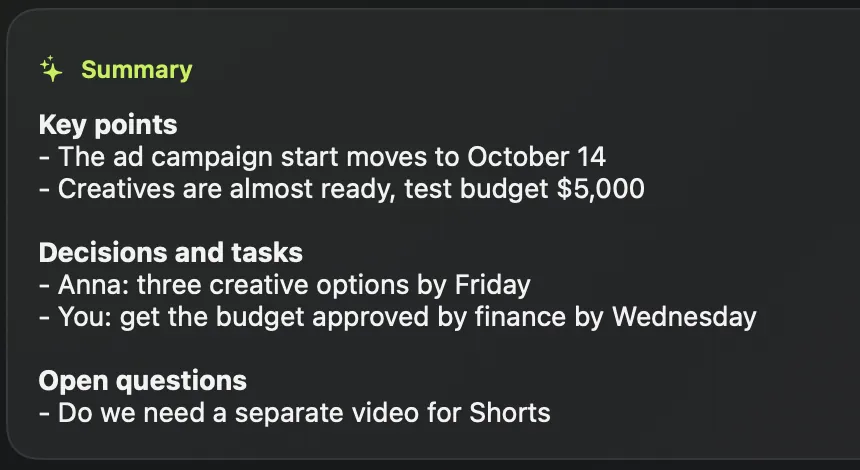
Meeting summary: key points, decisions and tasks, open questions

How to record and transcribe a call

  1. Open EasySay and go to Meetings.
  2. Start recording before or during the call.
  3. Stop when the call ends: EasySay transcribes it and writes a summary.
  4. Copy the tasks and decisions, or ask a question about the call.

No bots in your calls

Services like Otter or Fireflies add a bot participant to the call and send the recording to their servers. Guests notice, and many companies don't allow it.

EasySay records audio on your computer, like taking notes. It works with any calling app, including WhatsApp and Telegram, where bots can't join.

Questions
Which apps does it work with?

Any: Zoom, Google Meet, Microsoft Teams, WhatsApp, Telegram, FaceTime, Discord and browser calls.

Where does the recording go?

Nowhere. Recording, transcript and summary stay on your computer. Cloud AI is used only if you add your own API key.

Should I tell people I'm recording?

Nobody joins the call, but let participants know if your company rules or local law require it.

Try it yourself

14 days with every feature, free. No account, no card.

macOS 14+ · Apple Silicon (M1 or later) · Windows 10 and 11