
EasySay · Video to text
Video transcription

Video to text and subtitles
from links or whole folders

Paste a YouTube link or drop a folder of videos. EasySay transcribes the speech and saves text and subtitles. No per-minute limits, and your files are never uploaded.

macOS 14+ · Apple Silicon (M1 or later) · Windows 10 and 11

Links, files, hundreds at once

Paste several links or drop a folder: EasySay works through them one by one and saves text and subtitles next to each file.

  • YouTube and other video sites
  • MP4, MOV and audio files: MP3, M4A, WAV
  • SRT and VTT subtitles for editing, plus clean text
  • A short summary of long videos, and translation
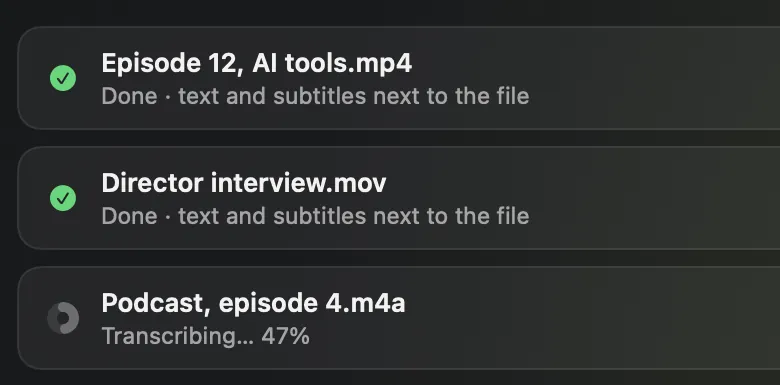
Transcription queue: two files done, a third in progress

How to transcribe a YouTube video

  1. Copy the video link.
  2. Open EasySay, go to Videos & Files and paste the link. You can paste several.
  3. Wait for it to finish, usually faster than the video's length.
  4. Copy the text or save the subtitles for your editor.

When the video already has captions

If the creator uploaded their own captions on YouTube, EasySay can use them right away and the text is ready in seconds. Otherwise speech is recognized by Whisper on your computer.

For links, only the audio needed for transcription is downloaded. Your local files are never uploaded anywhere.

Questions
How long does it take?

Usually less than the video's length, depending on the model and your computer. Videos with creator captions are ready in seconds.

Is there a length limit?

No. Everything runs on your computer, so there are no per-minute limits.

Can I get subtitles for editing?

Yes. EasySay saves SRT and VTT subtitles that work in Premiere Pro, DaVinci Resolve, Final Cut and CapCut.

Try it yourself

14 days with every feature, free. No account, no card.

macOS 14+ · Apple Silicon (M1 or later) · Windows 10 and 11